
Send to Your Favorite AI
TL;DR Use the AI you already love:
- 🤖 Built-in AIs — ChatGPT, Claude, DeepSeek, Kimi ready out of the box; add any custom AI by URL
- 📋 Field selection — Pick Title / Abstract / URL combinations to send
- 🌍 Reply language — 11 languages to choose from (English, Chinese, Japanese, French…)
- ✏️ Preview & edit — Tweak the prompt before sending; "Edited" badge appears after changes
- 📚 Prompt folders — Built-in + custom prompts organized into folders (Writing / Review / Learning)
- 🔐 Local storage — All prompts and configs stay in your browser; nothing uploaded
Overview
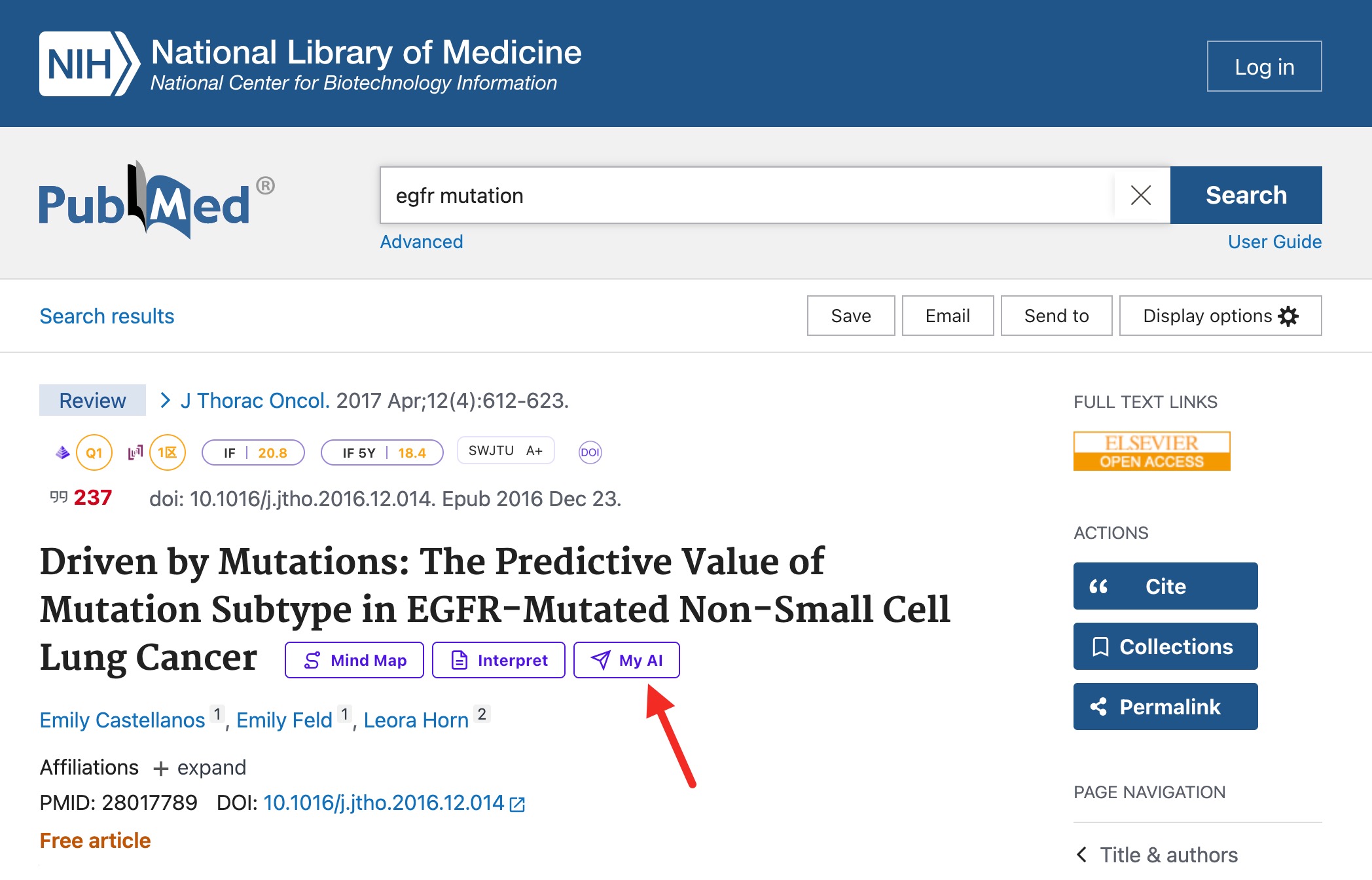
- When you're reading an article, PaperPop detects the title, abstract, and URL, combines them with your selected prompt, copies the result, and jumps straight to your preferred AI platform — paste and start chatting. No reliance on PaperPop's built-in AI service.
- Comes with ChatGPT, DeepSeek, Claude, Kimi and other popular AIs out of the box, and lets you add any custom AI platform URL.
Key Features
1. Built-in + Custom AI Platforms
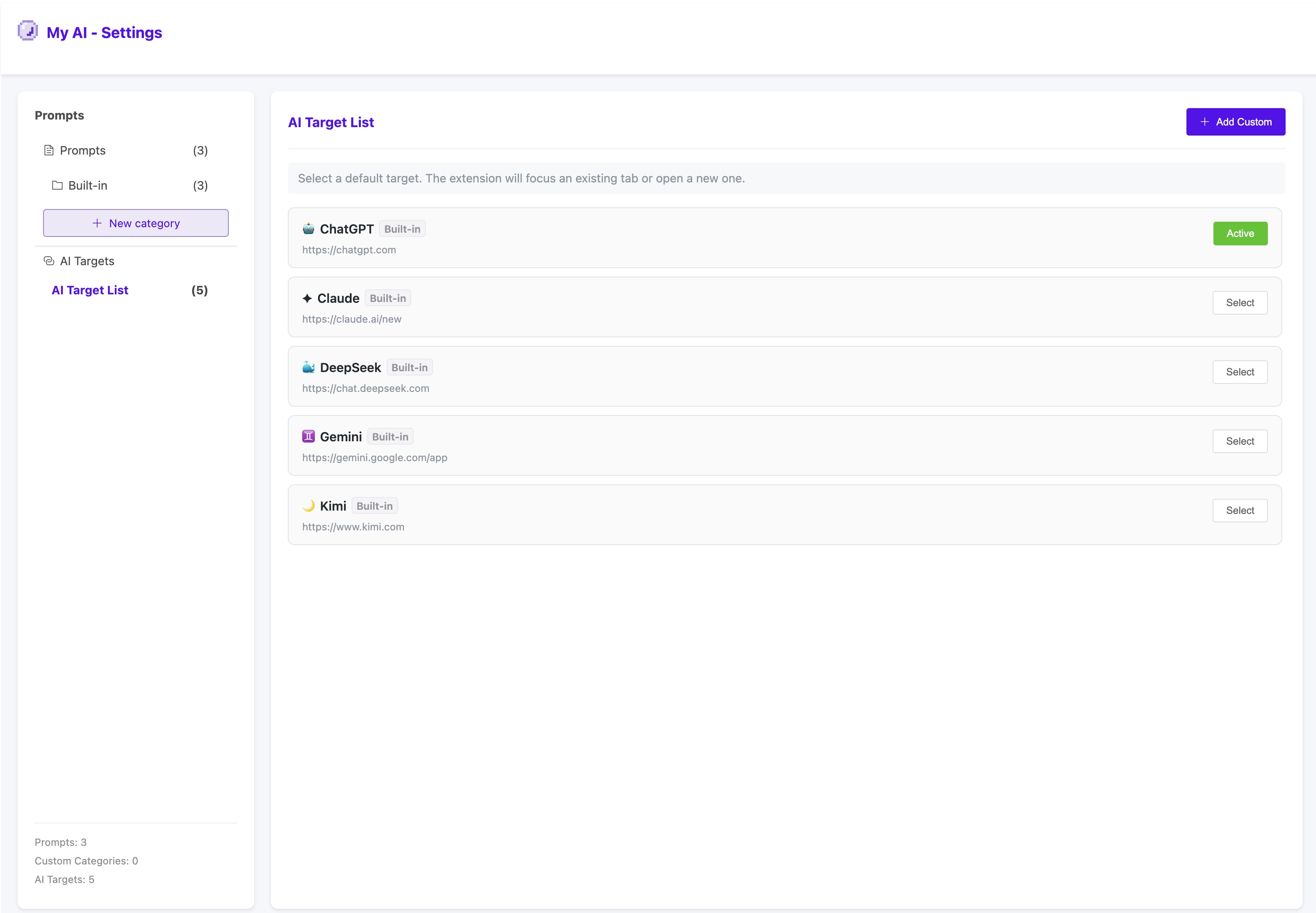
- Built-in popular AIs: ChatGPT, Claude, DeepSeek, Kimi, and more — ready to use
- Add custom AIs: Any AI platform that opens a chat via URL can be added (just enter a name, emoji icon, and URL)
- Smart tab handling: An already-open AI tab is reused instead of opening a new window
2. Pick the Content Fields You Want
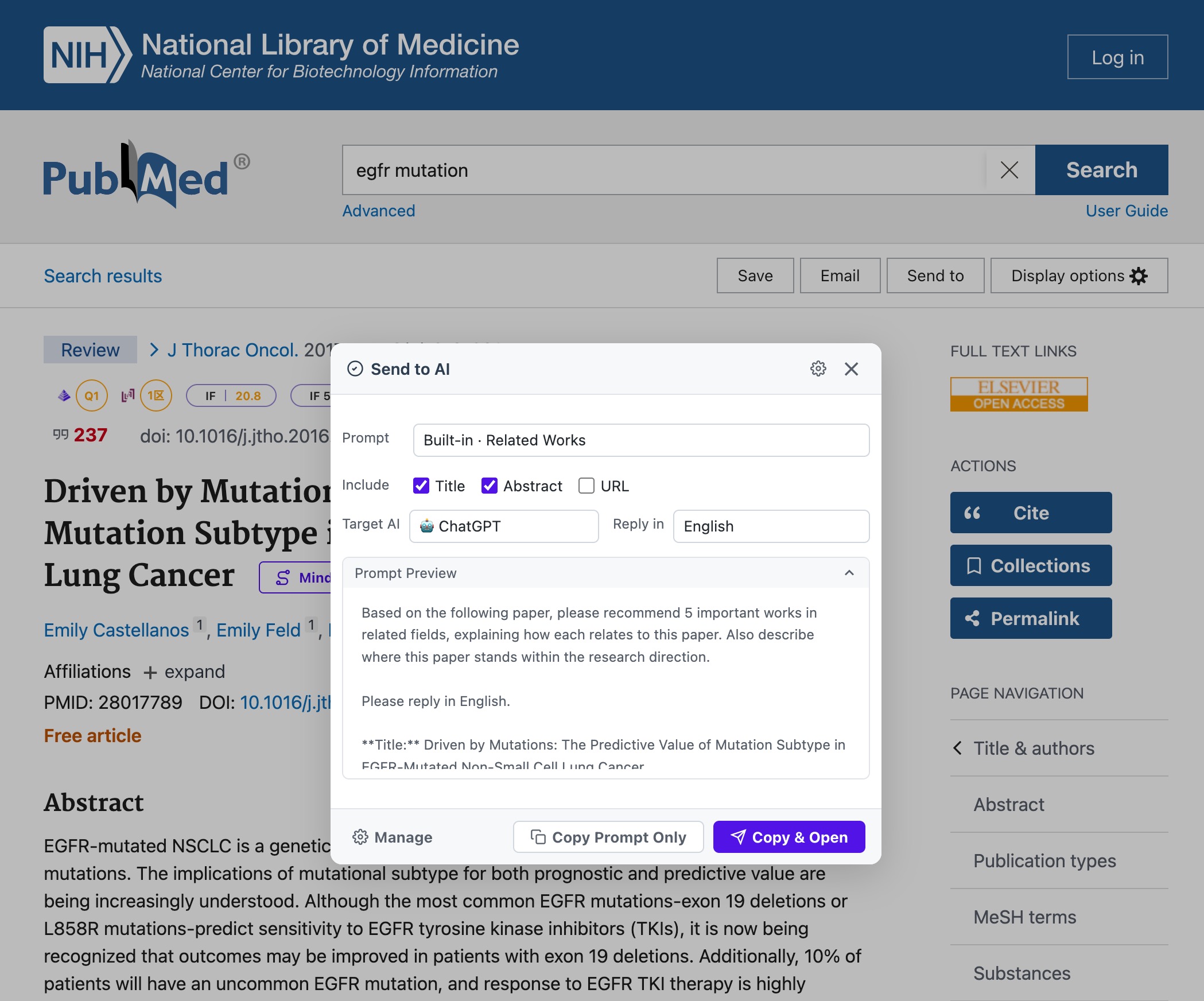
Choose which fields to send along with the prompt:
- Title: Article title
- Abstract: Article abstract
- URL: Current page link
Your selection is remembered for next time.
3. Specify the Reply Language
Tell the AI which language to reply in. Available: Chinese, English, Japanese, Korean, French, German, Spanish, Portuguese, Russian, Arabic, Vietnamese — or "Not specified" to let the AI decide. On first use, the default is set based on your interface language.
4. Preview and Fine-tune
- Live preview: Expand the preview to see exactly what will be sent
- Editable: Edit the preview directly — your edited version is what gets sent
- Edited badge: An "Edited" tag appears once you make changes
- Reset: Click reset to regenerate the content from your current settings
- Change notice: If you've edited the preview and then change the prompt/fields/language, a "Regenerated" hint appears so your edits aren't silently overwritten
5. Two Ways to Send
- Copy only: Just copy the combined content to your clipboard — you decide where it goes
- Copy & open: Copy the content and automatically jump to the selected AI platform — paste and go
6. Prompt Management
Organize prompts by use case with folders:
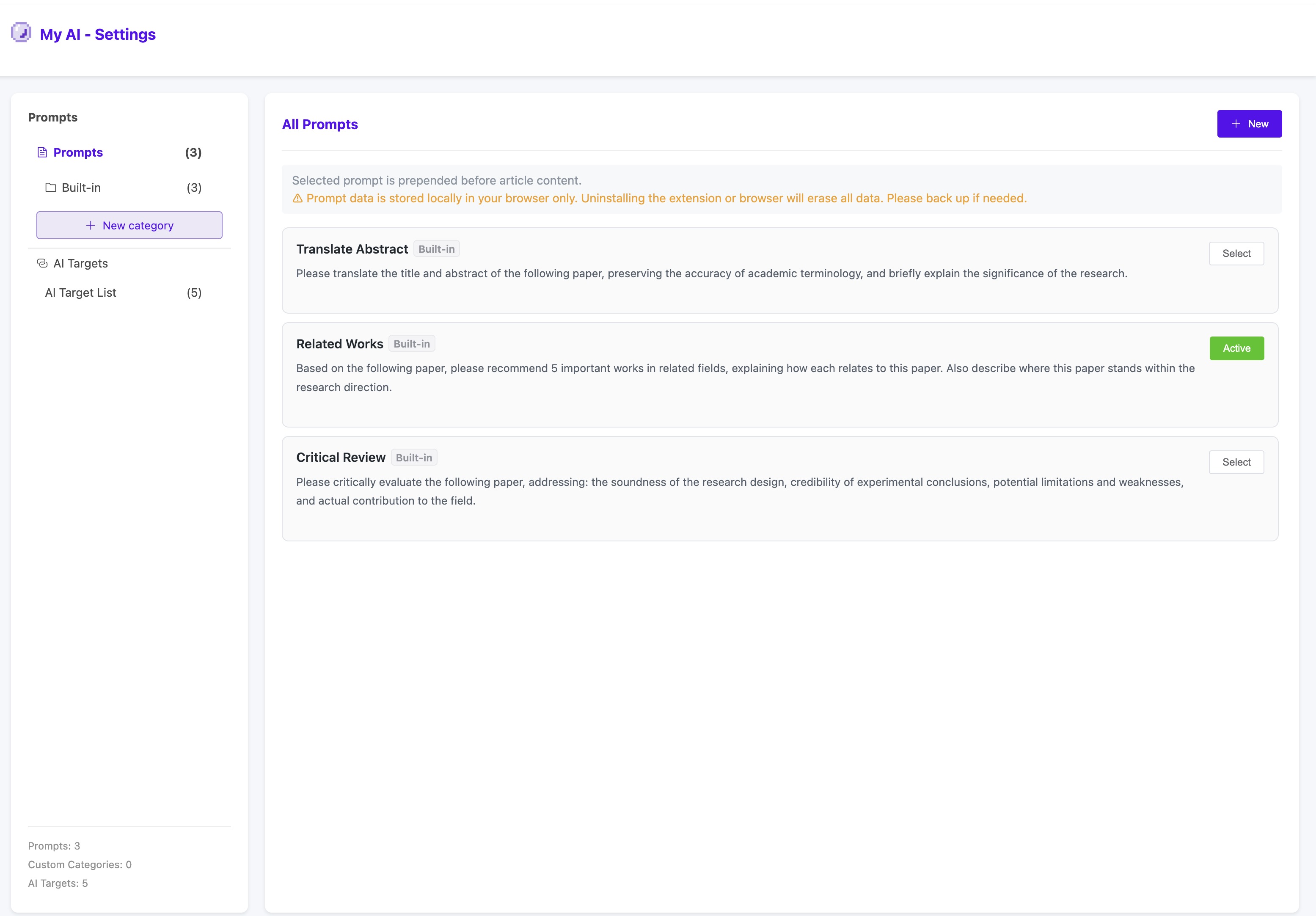
- Built-in prompts: Cover common scenarios like paper summary, critical reading, comparative analysis
- Custom prompts: Create, edit, and delete your own
- Folder grouping: Create custom folders (e.g. "Writing", "Reviewing", "Learning") and sort prompts into them
- Uncategorized: Custom prompts without an assigned folder go here automatically
- Quick default: Click "Set as default" in the list — it's auto-selected next time you open the panel
Example Use Cases
- Quick summary: Get a 3-sentence summary from ChatGPT
- Critical reading: Ask Claude to flag methodological limitations and potential biases
- Cross-language reading: Have DeepSeek translate a Chinese abstract and explain the jargon
- Writing assistance: Hand the abstract to Kimi to draft a paragraph for your literature review
- Personal AI workflow: Use custom prompts to plug into the private AI assistant you already rely on
Notes
Local storage: All prompts, folders, and custom AI configurations are stored only in your browser. They are not uploaded to the cloud. Uninstalling the extension or clearing browser data will remove them — back up important prompts yourself.
Related
- Academic Prompt Library: Curated collection of 20+ open-source and official academic prompt libraries, categorized by scenarios like "Paper Reading / Review / Writing / Peer Review / Submission"
- For multi-angle interpretation directly in the browser, see Abstract Interpretation
- To generate a mind map, see Generate Mind Map